

How to Fix WhatsApp Web Login and Loading Issues
Contents
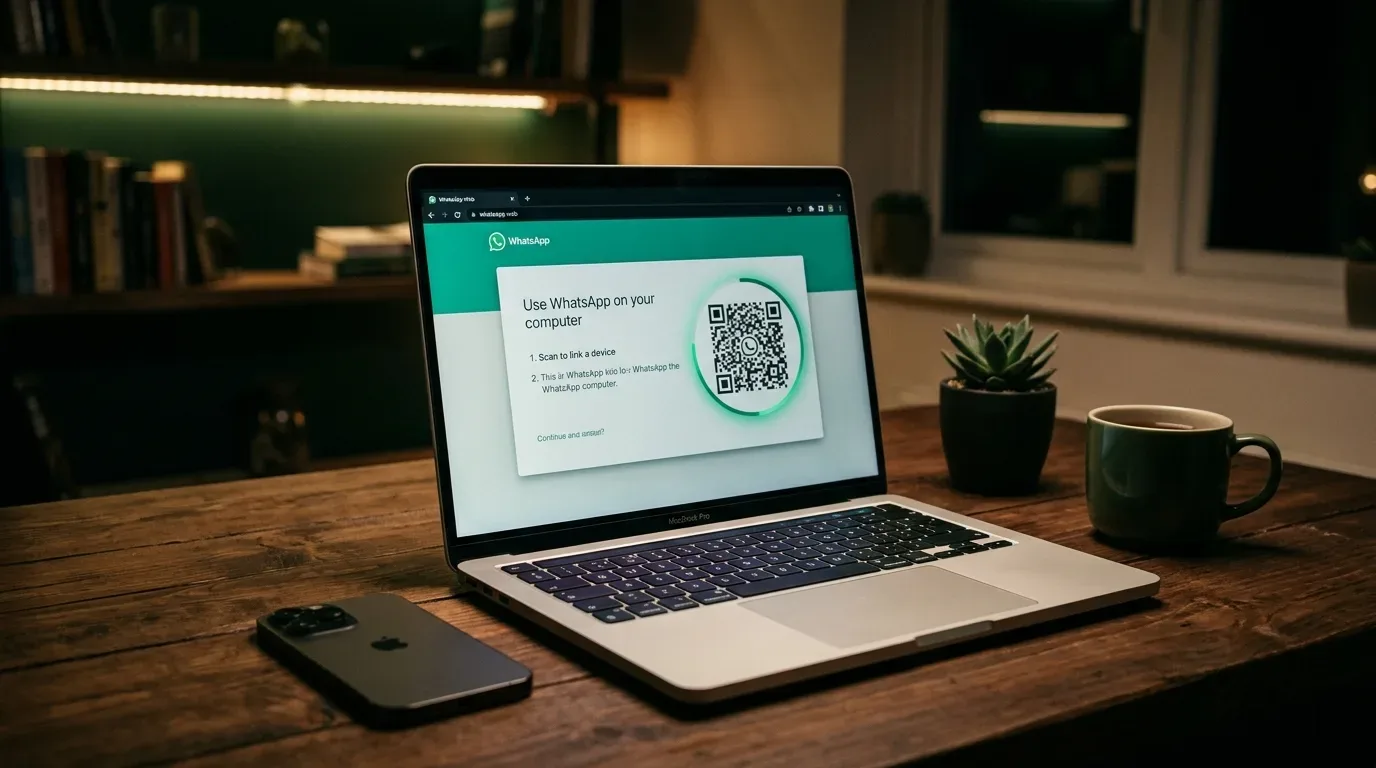
WhatsApp Web makes it easy to handle chats on a computer, but connection errors and loading loops happen regularly. When the QR code does not show up or the page gets stuck while loading, checking a few browser and network settings usually gets it working again.
Why WhatsApp Web stops working
Most loading and login errors come down to a few common causes:
- Unstable internet connections on your computer or phone
- Outdated cache and corrupted cookies in the browser
- VPNs or firewalls blocking WhatsApp servers
- Ad blockers and privacy extensions stopping background scripts
- Camera focus issues or missing permissions when scanning the QR code
1. Check network and VPN connections
WhatsApp Web needs an active connection on both your computer and your phone. To test the connection:
- Open another browser tab and visit any website to confirm your internet is working.
- Turn off any active VPN. Some VPN servers block traffic to WhatsApp web endpoints, which keeps the page in a loading loop.
- Restart your router if you suspect an IP conflict or local network drop.
- Turn Airplane Mode on and off on your phone to refresh its cellular or Wi-Fi link.
2. Clear browser cache and cookies
Cached files and old cookies can keep the page scripts from running properly. In Google Chrome:
- Open the menu in the top right corner and go to History > Clear browsing data.
- Check Cached images and files and Cookies and other site data.
- Click Clear data, close and reopen the browser, then load WhatsApp Web again.
3. Turn off browser extensions
Ad blockers, script managers, and tracking blockers can stop WhatsApp Web scripts from loading. Open a new Incognito Window (Private Window) and try loading WhatsApp Web there. If it works without issues, disable your extensions one at a time to find which one is interfering.
4. Fix QR code and camera scanning issues
If the QR code stays blank or your phone cannot read it:
- Refresh the page to generate a new QR code.
- Clean your phone's camera lens to help it focus.
- Make sure WhatsApp has camera permissions. On Android, check Settings > Apps > WhatsApp > Permissions > Camera. On iPhone, check Settings > Privacy > Camera and verify that WhatsApp is enabled.
5. Log out of linked devices and reconnect
When an existing session becomes unresponsive, clearing your active sessions and starting over usually fixes it:
- Open WhatsApp on your phone.
- Open settings and select Linked devices.
- Tap each active session and choose Log out.
- Refresh the page on your computer, tap Link a device on your phone, and scan the QR code again.
Related posts
How to Delete or Deactivate an Instagram Account
Steps to permanently delete or temporarily deactivate an Instagram account using the Meta Accounts Center on mobile or desktop.
How to Clean Phone Storage Without Deleting Photos
Free up phone storage without deleting your photos. Steps for iPhone and Android cache cleanup, app offloading, and cloud settings.

How to Verify Your Age on e-Devlet
Learn how to complete social media age verification on Turkey's e-Devlet portal, how data privacy works, and the deadline for existing accounts.