

How to Connect PS5 DualSense to PC and Phone
Contents
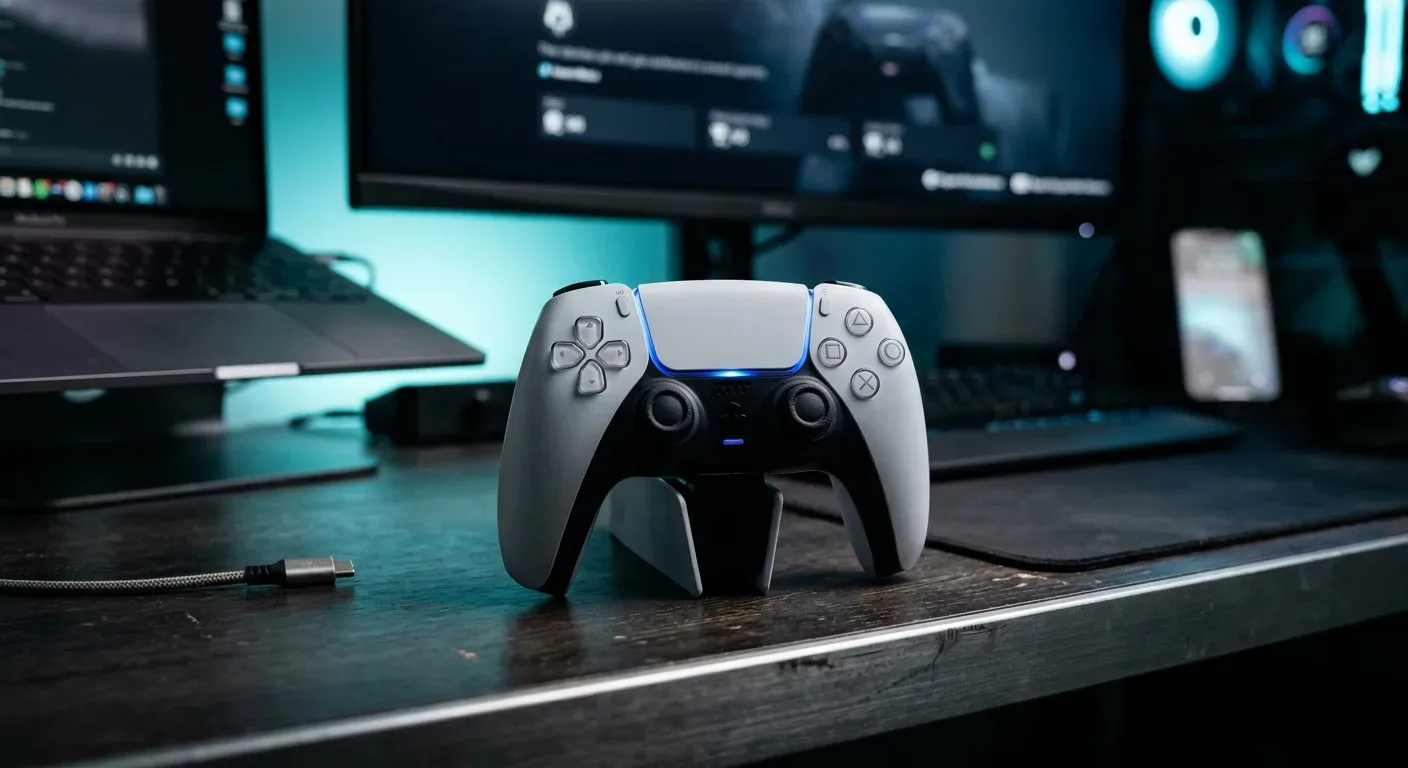
The PlayStation 5 DualSense controller works with Windows PCs, Macs, iPhones, and Android phones over Bluetooth or through a USB-C cable.
How to Put DualSense into Pairing Mode
Before pairing the controller with a PC or phone via Bluetooth, you need to turn on discovery mode:
- Unplug any USB cable connected to the controller.
- If the light bar is on, press and hold the PS button until the lights shut off.
- Press and hold the Create button to the left of the touchpad.
- While holding Create, press and hold the PS button.
- Release both buttons when the light bar around the touchpad blinks twice in rapid bursts.
Connecting the PS5 Controller to a PC
You can connect the controller to Windows using a cable or over Bluetooth.
Method 1: Wired Connection via USB-C
A wired connection gives the lowest input lag and supports every controller feature:
- Plug a data-capable USB Type-C cable into the controller and connect the other end to your computer.
- Windows detects the controller automatically without extra drivers.
- Haptic feedback, the built-in speaker, and the audio jack work on PC only through a wired connection, and only in games that support those features.
Method 2: Wireless Connection via Bluetooth
- Put the controller into pairing mode.
- Open Settings > Bluetooth & devices in Windows and check that Bluetooth is turned on.
- Click Add device, then select Bluetooth.
- Select DualSense Wireless Controller from the list.
- The light bar stays solid once the connection succeeds.
Configuring Steam for DualSense
Steam has built-in profile settings to map PlayStation controller inputs:
- Open Steam and go to Steam > Settings > Controller.
- Confirm the controller appears and enable PlayStation controller support.
- Games with native support will display PlayStation button prompts on screen.
Connecting DualSense to Mobile Devices
DualSense pairs with iOS 14.5 or later and Android 12 or newer.
iPhone and iPad Setup:
- Put the controller into pairing mode.
- Go to Settings > Bluetooth on your iOS device.
- Look under Other Devices and tap DualSense Wireless Controller.
Android Setup:
- Put the controller into pairing mode.
- Open Settings > Connected devices > Pair new device (or Settings > Connections > Bluetooth).
- Tap DualSense Wireless Controller from the available device list.
Mobile operating systems do not support adaptive triggers or advanced haptics.
Multi-Device Pairing and Slot Switching
Controllers with current firmware can store up to four paired devices:
- Assigning a New Slot: While the controller is off, press and hold the PS button along with one action button (Triangle, Circle, Cross, or Square) for more than 5 seconds. Pair the device over Bluetooth to store it in that slot.
- Switching Devices: Turn on the target device, then hold that device's action button together with the PS button for about 3 seconds until the lights switch.
How to Reconnect to Your PS5
To pair the controller back to your PlayStation 5, connect it to the console with a USB cable and press the PS button. Once it syncs, unplug the cable.
Related posts
How to Loop a YouTube Video on Desktop and Mobile
Steps to loop YouTube videos and playlists on desktop browsers, mobile apps, and smart TVs.
How to Fix WhatsApp Web Not Working and Login Issues
WhatsApp Web not loading or QR code failing? Here is how to fix connection drops, browser cache conflicts, and desktop login issues.

How to Track Recent Earthquakes Using AFAD and Kandilli
Track recent earthquakes in Turkey using AFAD and Kandilli Observatory data, understand ML and Mw values, and enable alerts.